Emergency messages or Youtube videos can be sent to all Optoma displays in different classrooms(or meeting rooms) through the broadcast function of the OMS.
Broadcast Message
Images or text can be scheduled or broadcast immediately for emergency messages. Perfect for displaying timetables in a classroom or a customized welcome message in a business setting.
|
Quick steps : Device on the function menu > select a device > click Broadcast tab > Broadcast panel Group on the function menu > select a group > click > Broadcast panel Location on the function menu > select a location > click > Broadcast panel Schedule Broadcast on the function menu > click + > select a device/group/location > Broadcast panel |
Broadcast Text
A. Click Text Message or Media Message, or both.
B. Select Text Font Size ,Text Position ,Text Color and Background Color.
C. Set Playback length (hh:mm:ss) and Preview.
D. Click Send to play immediately.

Broadcast Media message
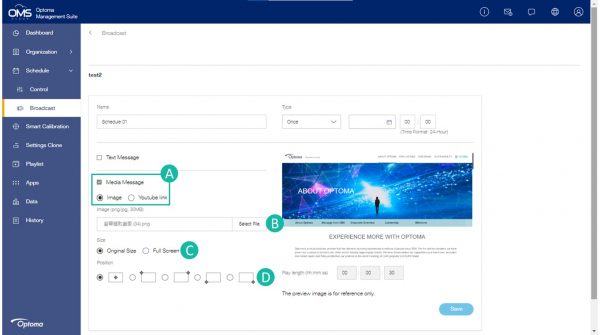
Please click "Media Message". There are two options: 1. Image 2. YouTube link.
1. To broadcast the Image :
A. Click "Image".
B. Click "Select File" to upload image.
*Format support for image: png/jpg, maxium resolution 1920×1080.
C. Select the size of the image displayed on the screen.
D. Select the starting position of the image displayed on the screen.
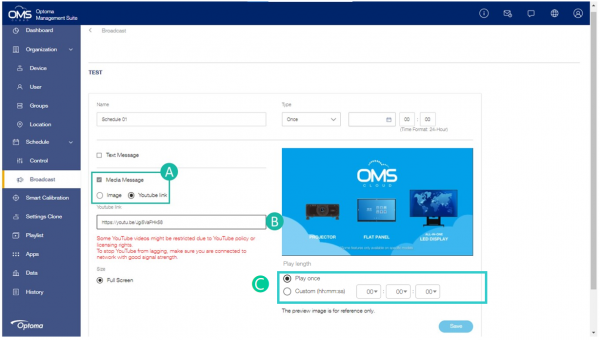
2. To broadcast the YouTube video :
A. Click "YouTube link".
B. Paste the YouTube link here.
C. Set the playback length:
- Play Once.
- Custom (hh:mm:ss).
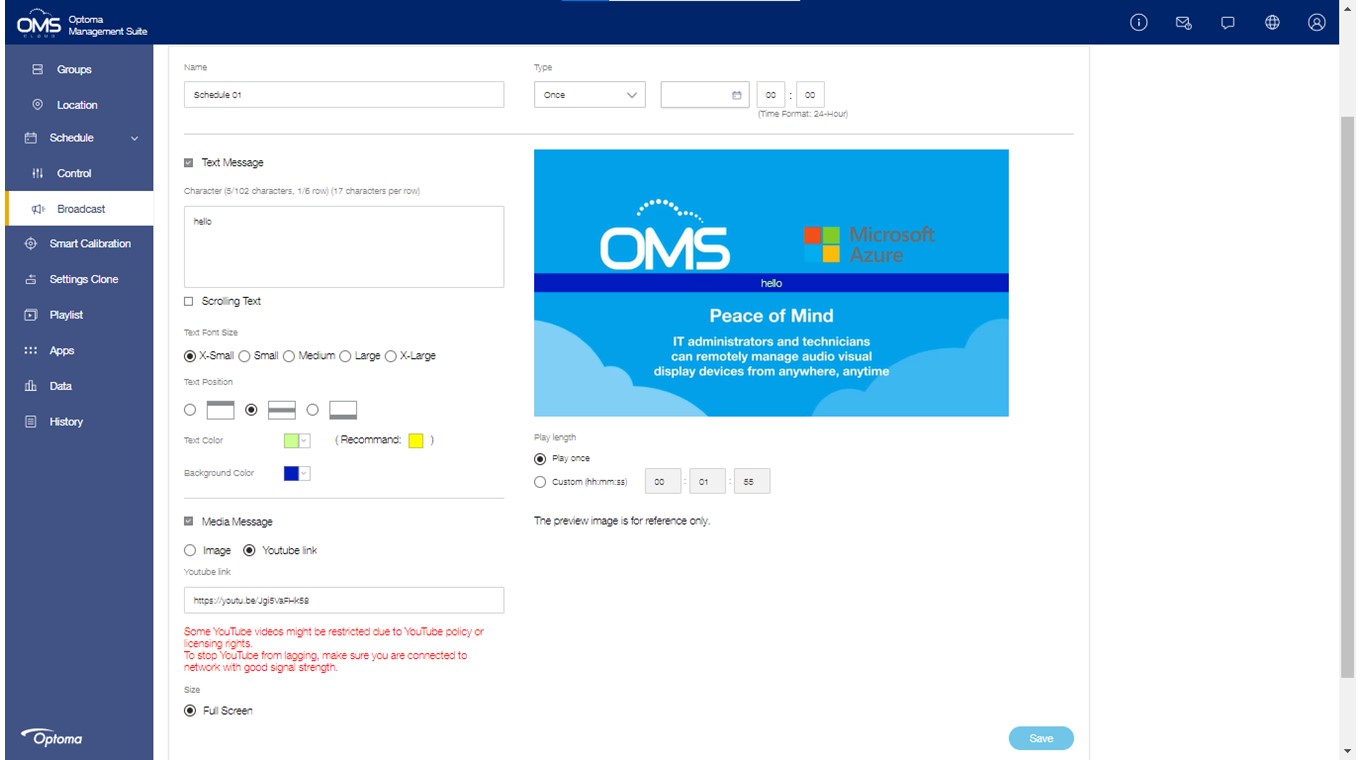
Broadcast Media with Text message
| Tips: You can choose one of the media messages to send with the text. |
You can choose any media information format to broadcast together with text messages, for example:
1.Text with Image.

2.Text with YouTube link.
Broadcast message - schedule
Schedule Broadcast
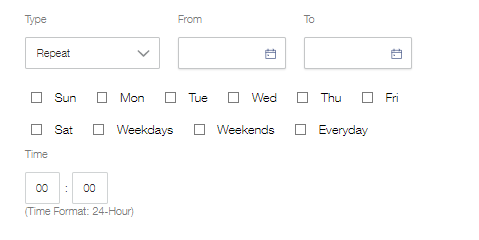
1. Please select schedule type: "Once or Repeat".
- Once: one-time schedule
- Repeat: Monday to Sunday
2. Select the date and time for the scheduled task.
3. Click "Save" to save the task until execution.
To add a Playlist
| Tips: Easily share information, promote products and services, and interact with customers and employees in real-time without worrying about an internet connection. |
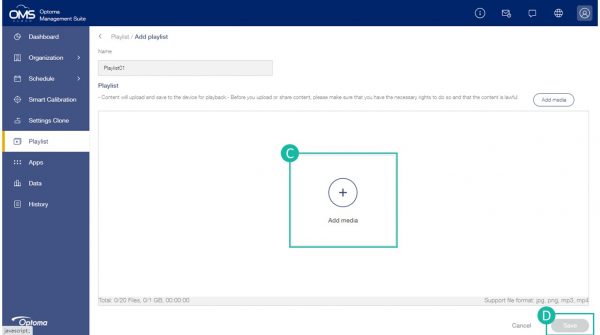
To add playlist
A. Click Playlist on the function menu.
B. Click "+" to Add playlist.

C. Click Add media to upload image or video.
*Support file format: jpg, png MP3, MP4.
D. Click "Save".
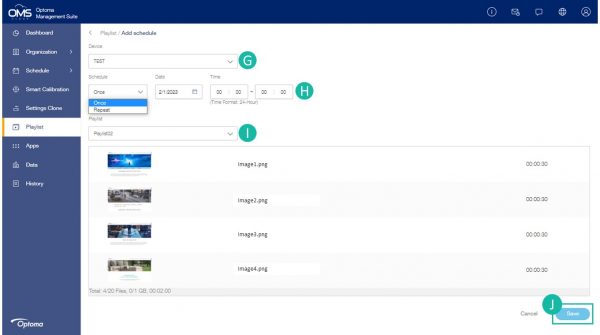
To add Schedule
E. Click "Schedule".
F. Click "+" to add schedule.

G. Select a device.
H. Select schedule type, data and time.
I. Select playlist.
J. Click "Save".
Copy your Schedule
You can easily add a schedule to multiple devices using the copy feature.
A. Click the edit menu and select “Copy”.

Edit your Schedule
To select one or multiple devices.

- Clear playlist
- Stop playlst
- Pause playlist
- Play playlist