About the account permission table
OMS Cloud users are mainly divided into three types -- "admin", "power user" and "user".
These three types of users have different permissions listed below. The account you registered for OMS Cloud at that time is the system admin. For advanced users and users can be created by the admin.
*The order of permissions from high to low -- Admin > Power User > User.
Role-based permissions to enhance device management
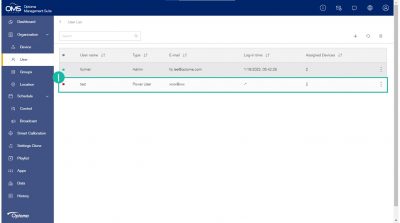
Quick steps : Click User on the left function menu > add User > select user type and fill in information > assign device to user.
A. Click User on the left function menu.
B. Click "+" in the upper right corner.
C. Create new user information.
D. Click "+" to add a new device to assign to the user you created.
User type:
- Power user : Most features are available except system management and playlist.
- User : Basic control only.
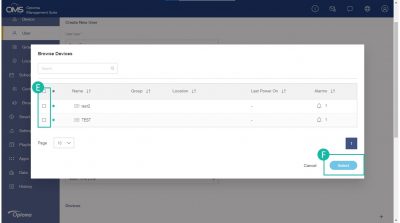
E. Select the device/s.
F. Click "Select"to proceed to the next step.
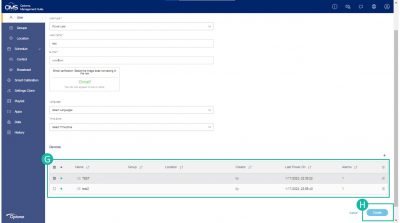
G. Confirm the user information and device list.
H. Click "Create".
Confirm "OK", then check the user in the list.
User status : ● Activated / ● Not activated
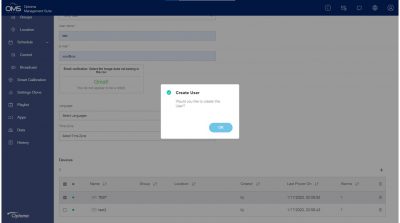
The newly created user will receive an OMS invitation email, then user may click the Activation Link to start using OMS.