System management function facilitates administrators to set device permissions.
- Device on the function menu > Select a device > click System Management tab > System Management panel.
- Group on the function menu > select a group > click
 > System Management panel.
 - Location on the function menu > select a location > click > System Management panel
Apps Permission
A. Unknown source On / Off
- Enable or disable the installation of third-party software from unknown sources.
B. Install from Marketplace On / Off
- Enable or disable the installation of third-party software from the Optoma Marketplace or Google Play store.
C. Uninstall app On / Off
- Enable or disable uninstalling software.
OSD Lock / Unlock
OSD Lock On / Off
- Remotely lock the OSD to prevent changes to device settings; the device will remain locked until unlocked either via OMS or by using the advanced passcode on the device.
Resect to Default
- Restores all settings to their original factory defaults. OMS will be automatically unpaired, and all data will be lost. This action cannot be undone.
Lock Settings
Reference article : Tutorial 18 - How to Lock Display Settings in OMS
Prevent unauthorized users from changing settings to maintain device stability. Simplify settings by device or group for maximum management efficiency.
| Function | Description |
| Keypad Lock | To enable or disable the keypad of the display. |
| Touch Lock | To enable or disable the screen touch of the display. |
| Front I/O Lock | To enable or disable the screen front I/O Port |
Security Lock
Set up security verification and timers to protect the projector. When the time is up, the projector automatically locks and cannot be used.
*Note: Enabling or disabling the settings requires a password.
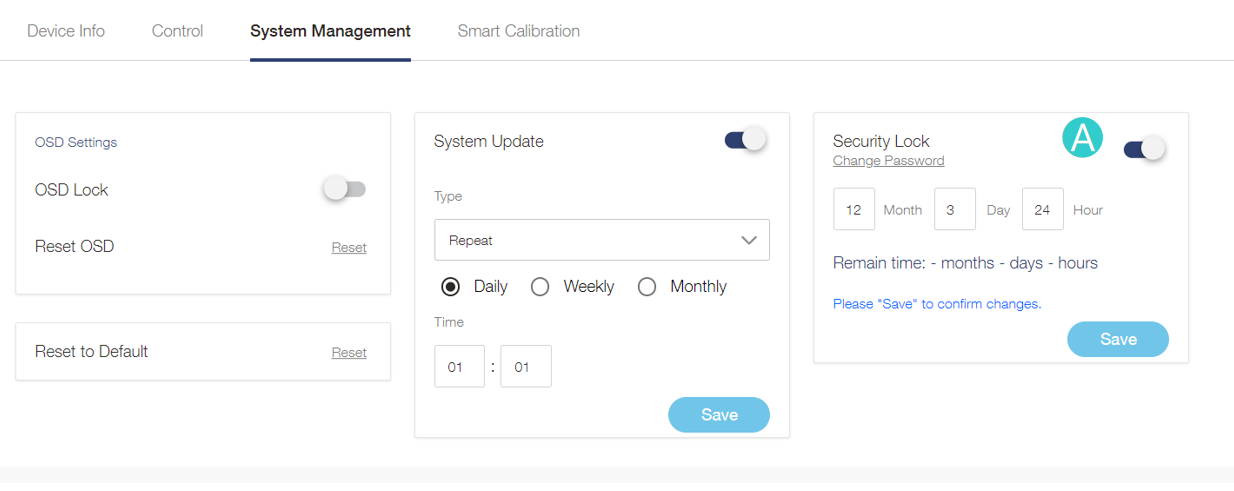
System Update
System updates ensure device firmware is always up to date. Specify how often or when OMS checks for and performs firmware updates. If no new firmware is detected, no system update will occur.
A. System Update On / Off
- Enable or disable automatic system updates.
B. If turn on the system update, you can choose
- Now : Check for updates and execute when new updates are detected.
- Repeat : Choose daily, weekly, monthly , time setting.
C. Click Update.
OMS Device App Update
Auto-update the OMS app to ensure you experience the latest optimizations and new features working properly.
The update will run in the background and it may cause short task delays, but everything will resume immediately after.
*Note: If you switch off the auto-update function, the OMS app will not upgrade automatically. This may cause some new features to not work properly.
To upgrade the OMS app manually, go to Device > All Apps, then click on the OMS app to trigger the upgrade.