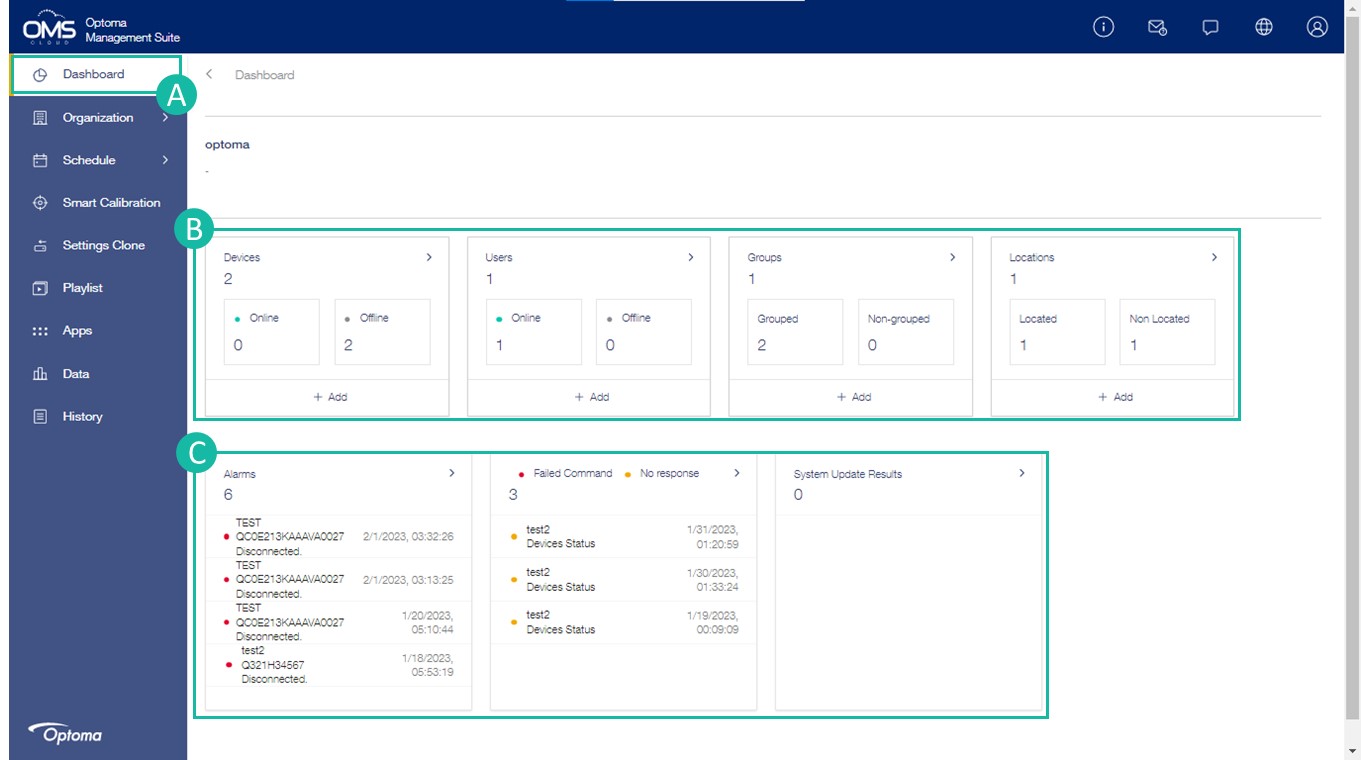
Dashboard - Monitor device status in different locations and groups via the dashboard
A. Dashboard on the function menu.
B. Online Status : All user states and device states, including different groups and locations.
C. Alert Stauts : Device alerts include status, commands, and system updates.
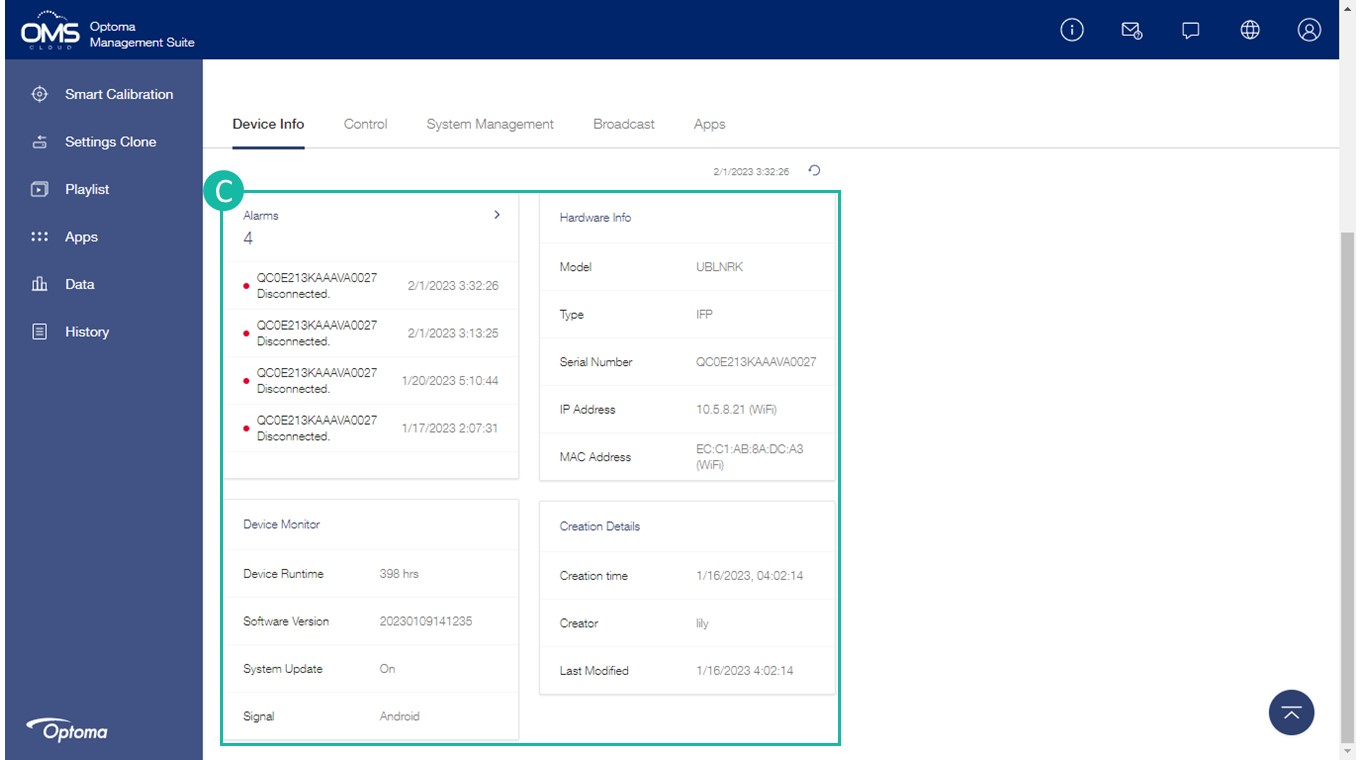
Device Informantion - Easily monitor device status through OMS device list
A. Device on the function menu : Device name, Device status , Temperature , Fan status are the default items and cannot be canceled.
B. Simply click on a device to view its information.
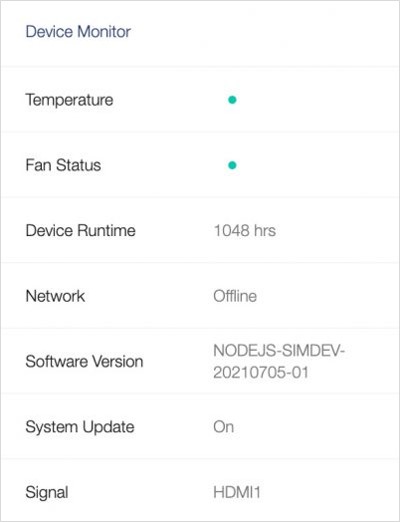
C. Includes alarms, hardware details, status.
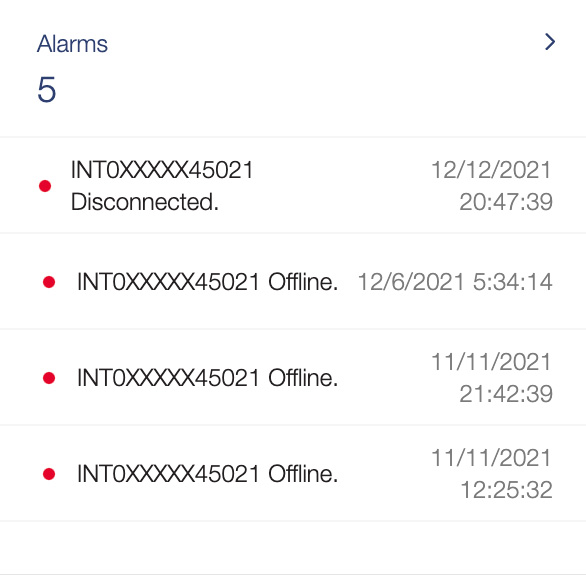
Alarms:Device system abnormal notification.
Device Runtime:Cumulative light source hours.
Software version: Device software version.
System update:Auto On/Off Status.
Signal:Input source.
To quickly send basic command by selecting device and click right upper short cut key.
A. Click on one or more devices.
B. Click the shortcut key in the top-right corner to run the commands.
Group Setting - Easily manage multiple devices at the same time with grouping
A. Click Groups on the function menu.
B. Click "+" the upper right corner to add a new group.
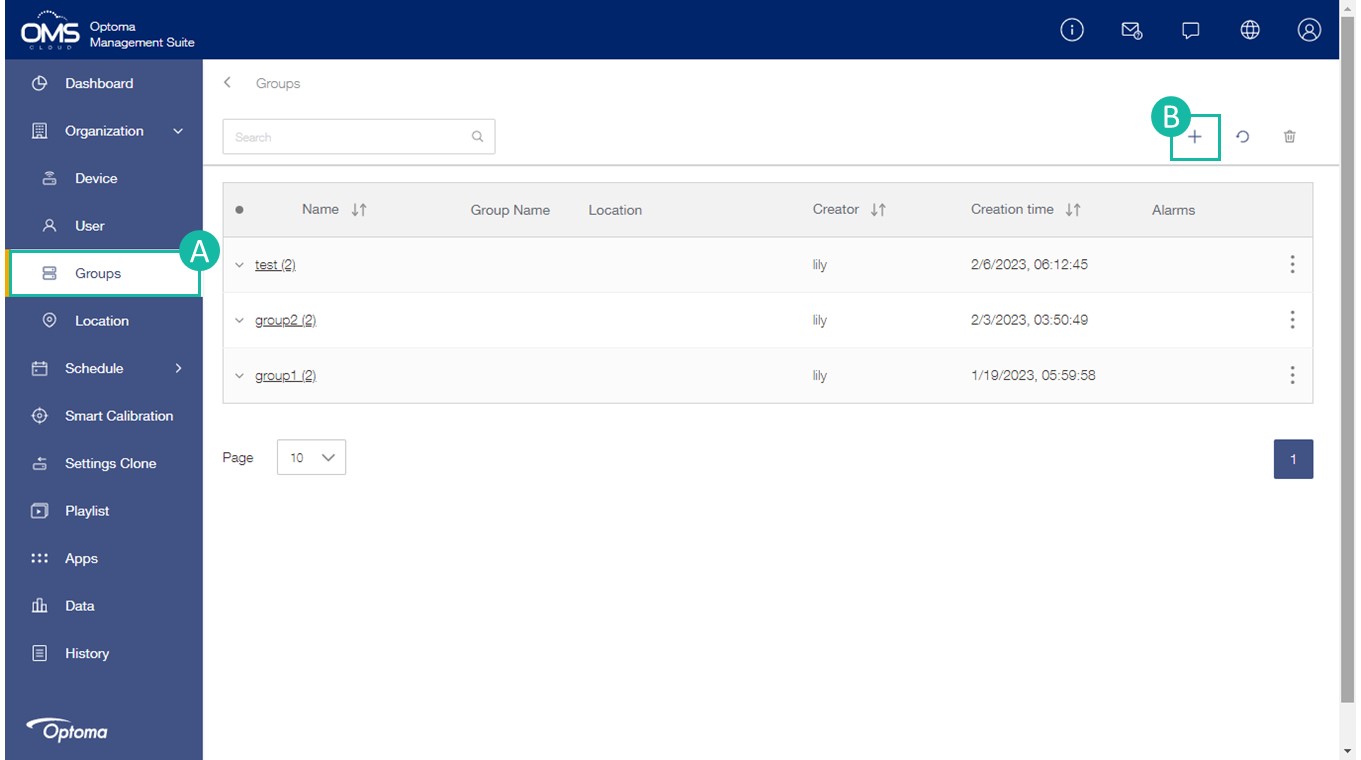
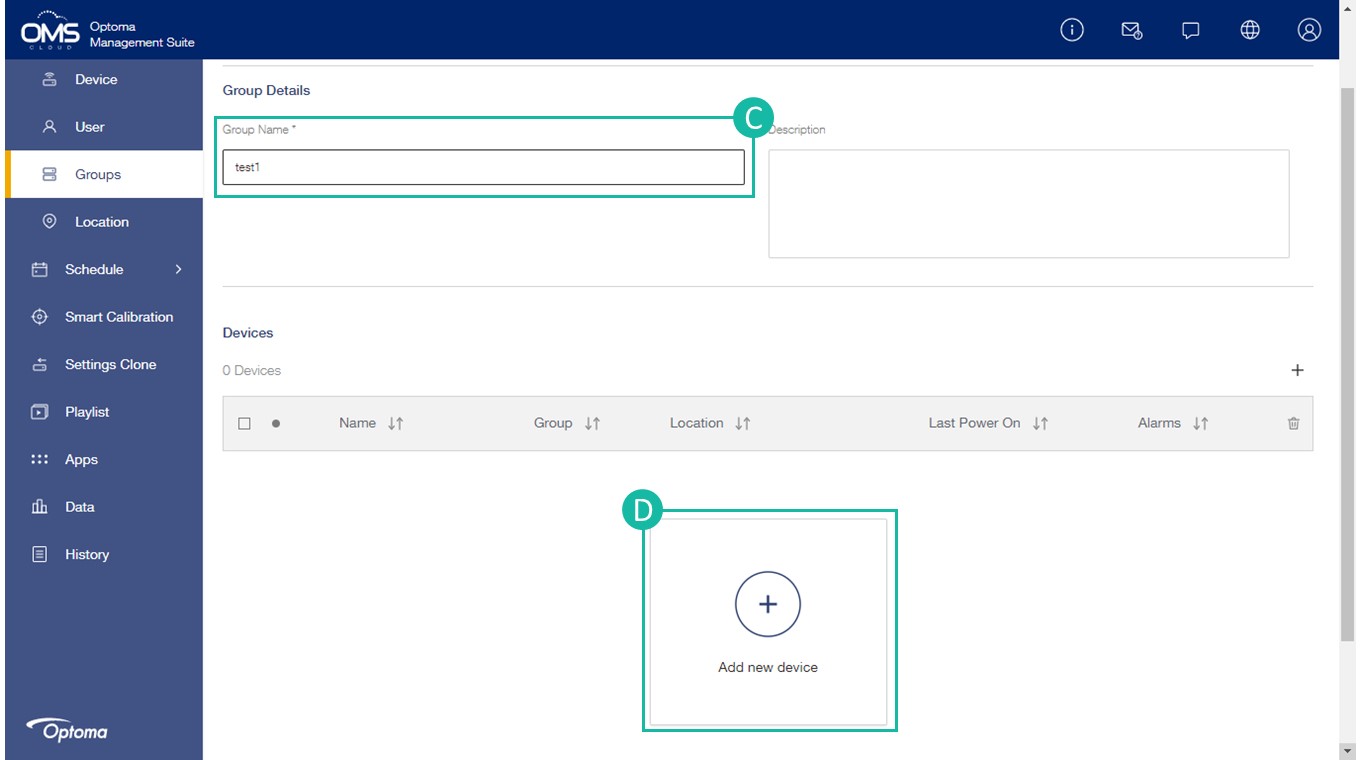
C. Fill in the group details: Group name (must have), group information description.
D. Click "+" to add new device.
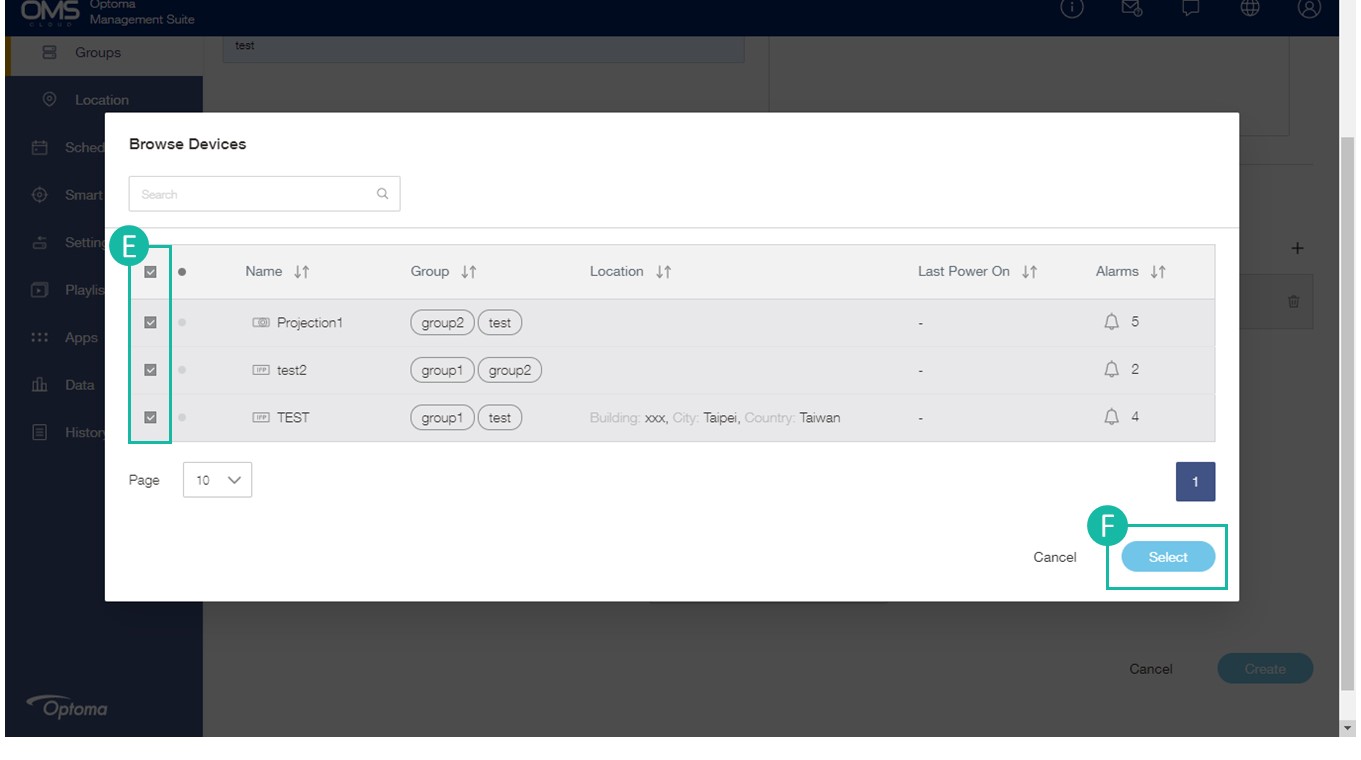
E. Select the device in the list.
F. Click Select to add the device/s to the group.
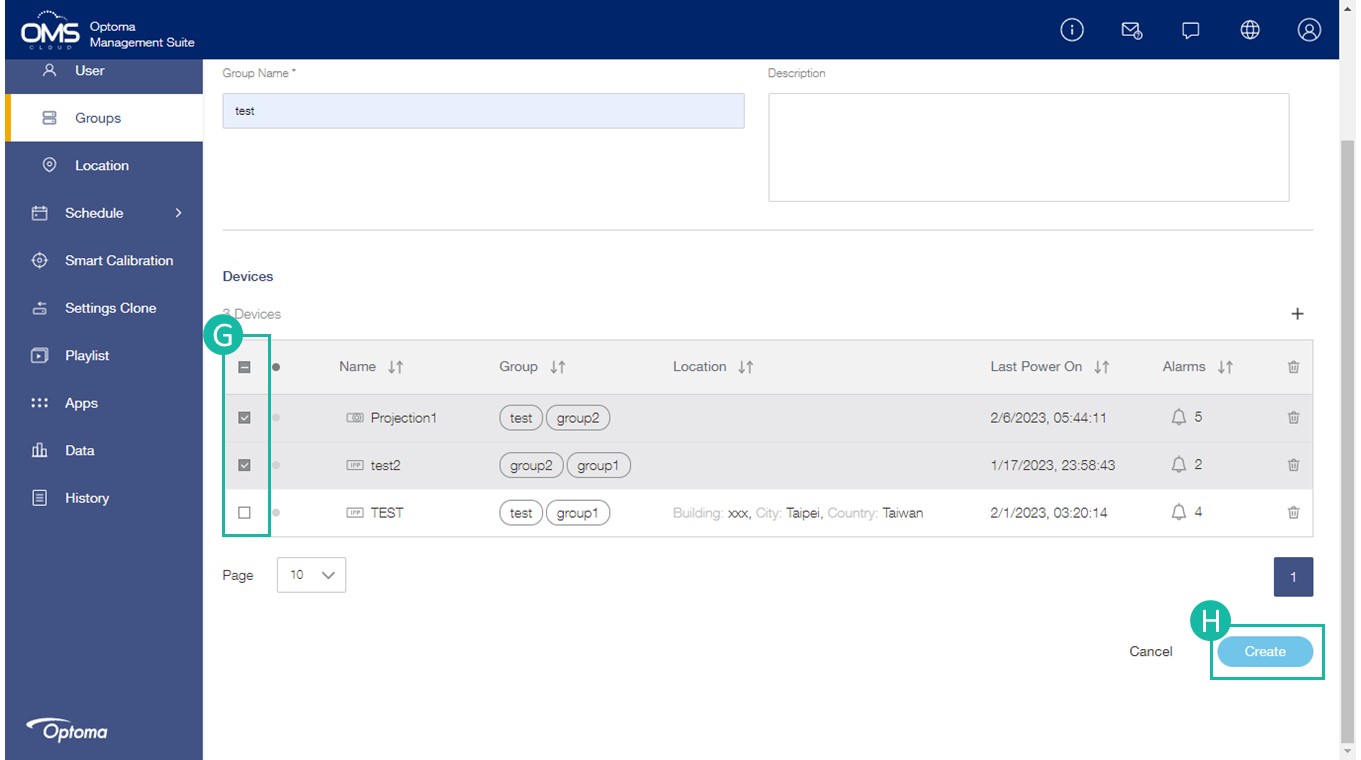
G. Check the device list.
H. Click "Create".
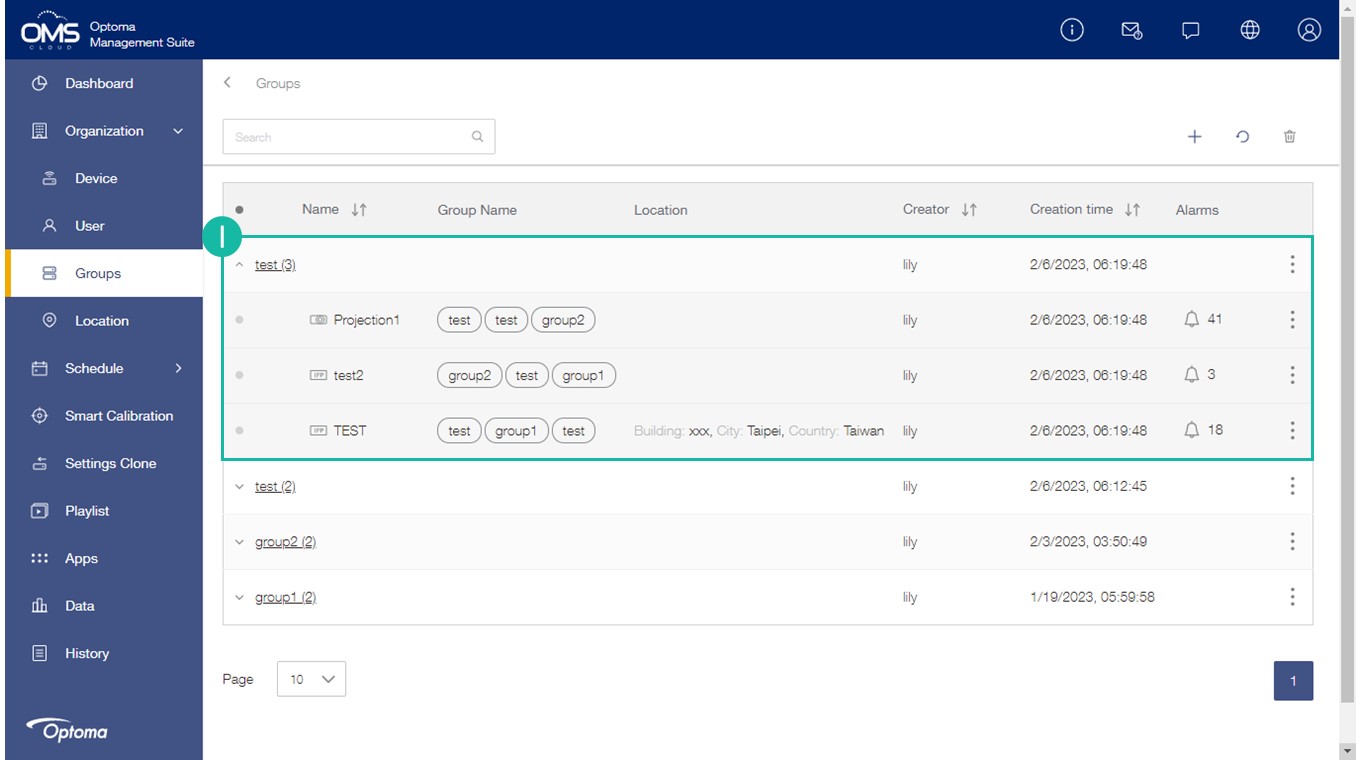
I The new group will be listed in the group list.
*A device can be assigned to different groups.
Location Setting - Easily manage and control devices based on location
Use the location menu to add locations, assign devices to locations and send commands to display devices in a particular location.
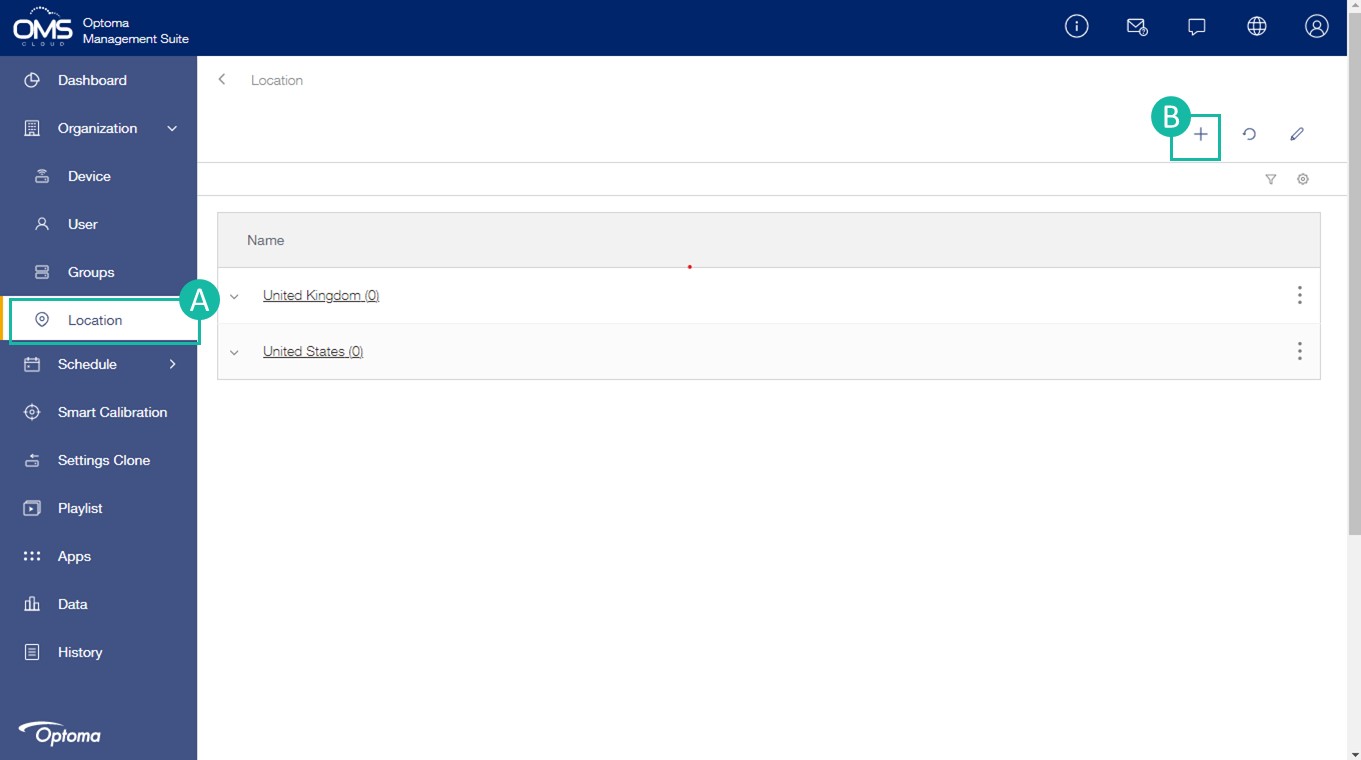
A. Click Location on the function menu.
B. Click "+" in the upper right corner to add a new location.
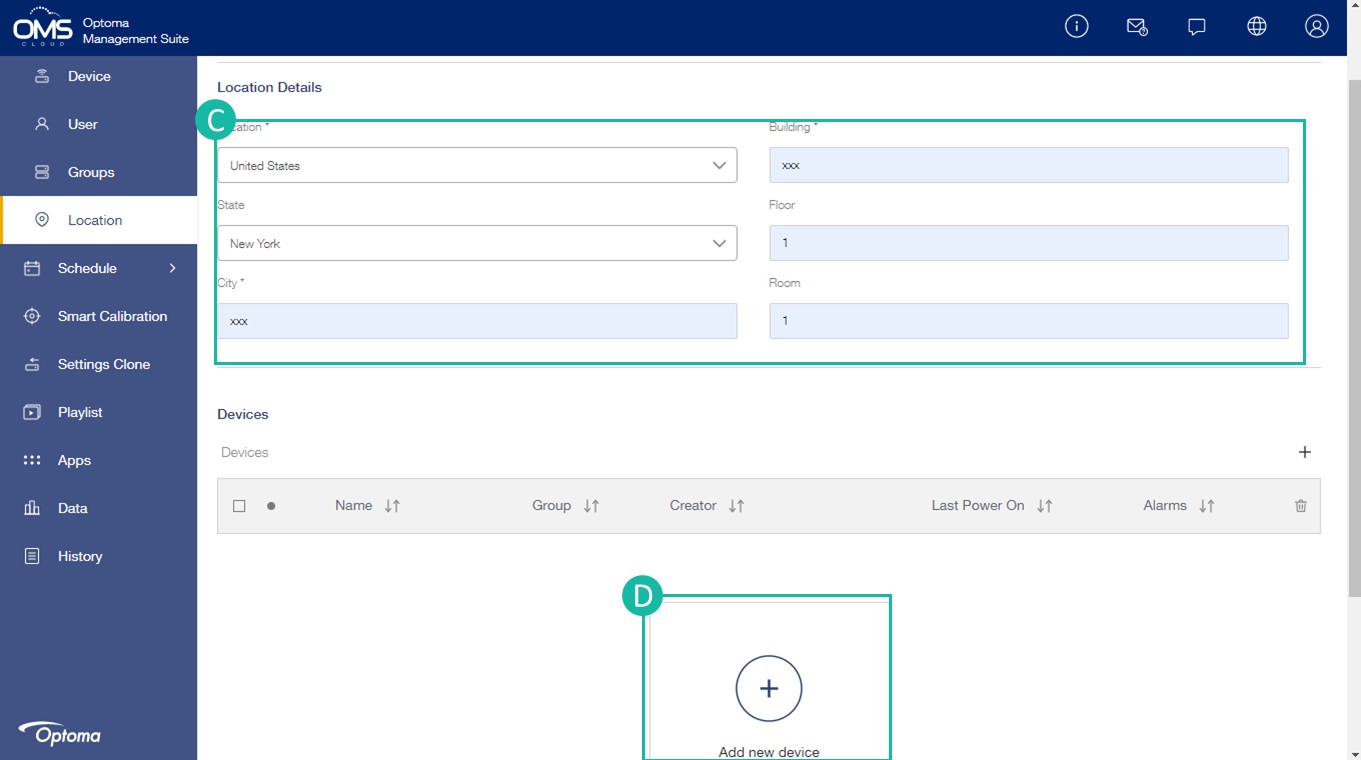
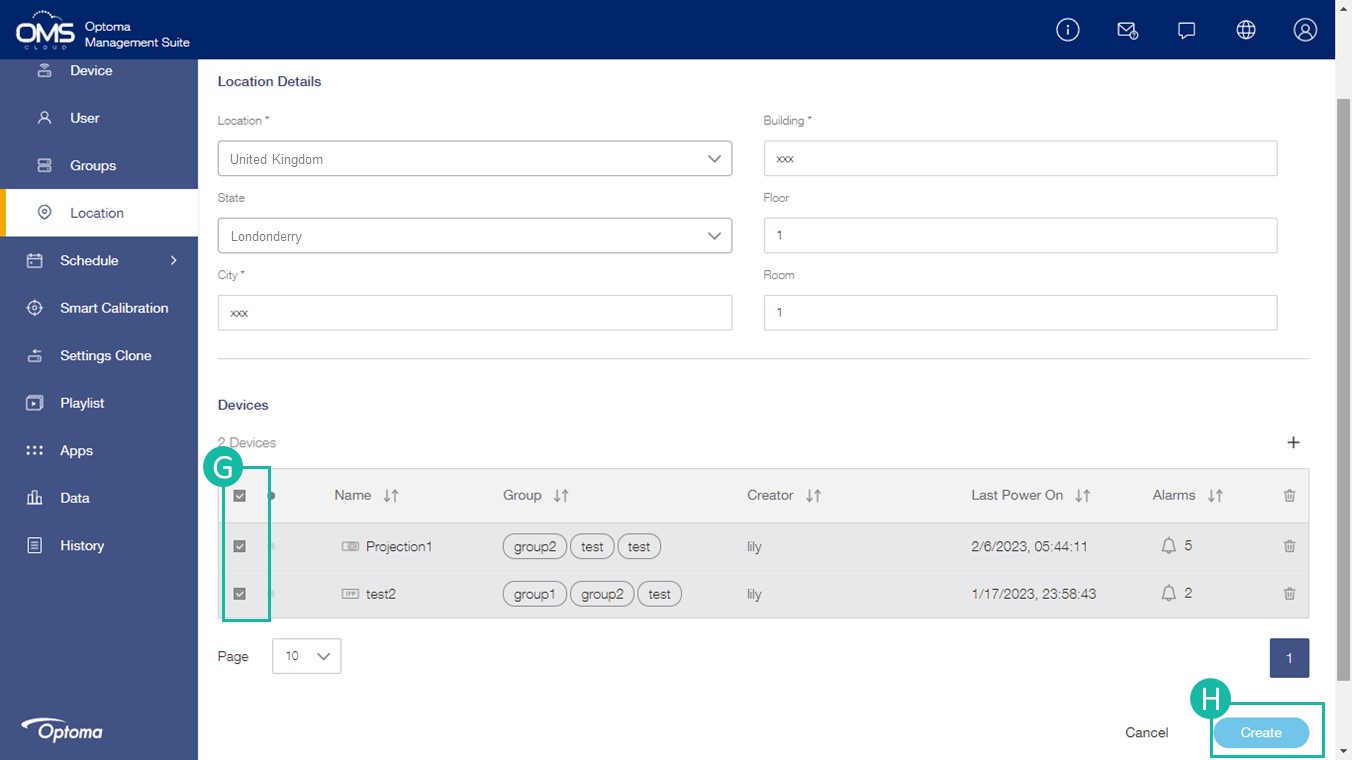
C. Fill in the Location details : Area > State > City > Building > Floor > Room
*Each device can only be assigned to one location.
D. Click + to add new device/s into location.
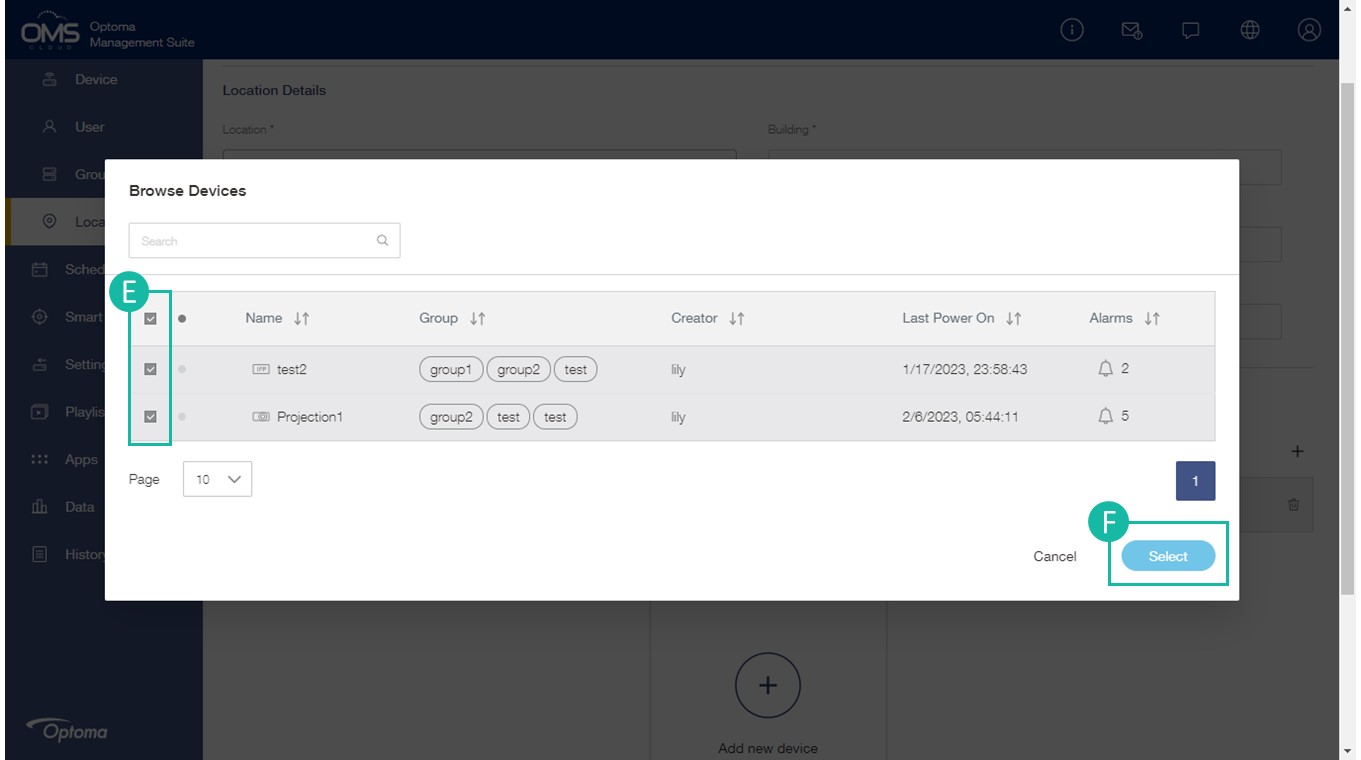
E. Select the device in the list.
F. Click "Select".
G. Check the device list.
H. Click "Create".
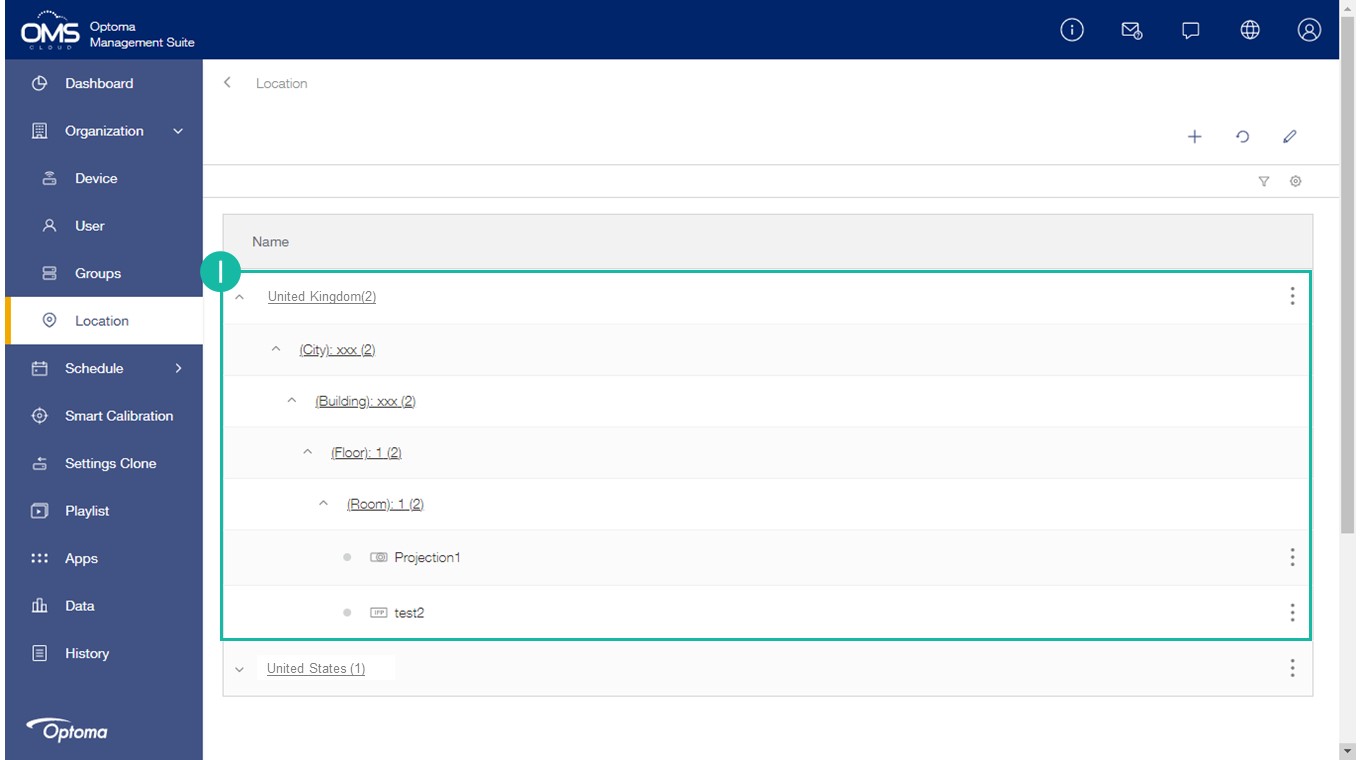
I. The new location will be listed in the location list.
Immediate Control
- Device on the function menu > select a device > click Control tab > Control panel
- Group on the function menu > select a group > click
 > Control panel
 - Location on the function menu > select a location > click > Control panel
A. Select one or more commands.
*If power off is included in multiple commands, the power off command is executed last.
*Control panel commands depend on different models.
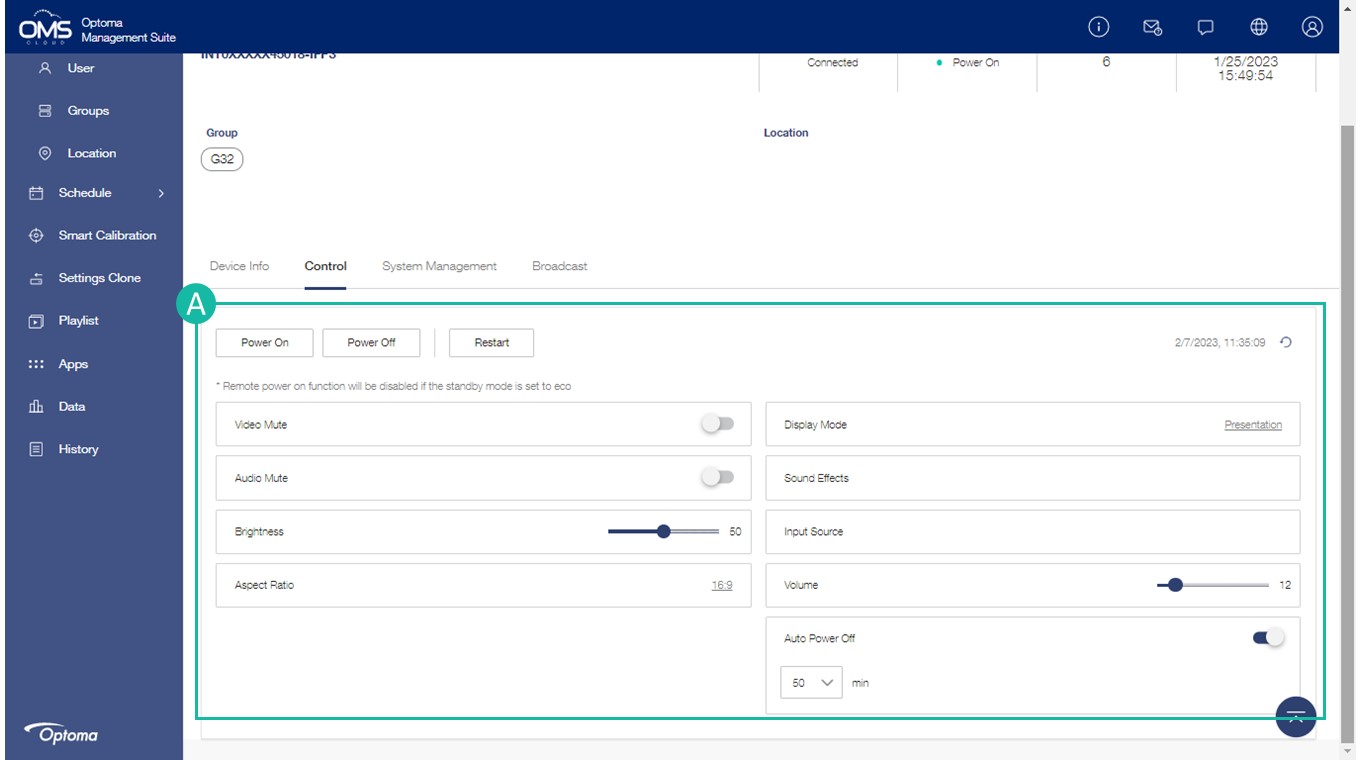
Group control / Location control.
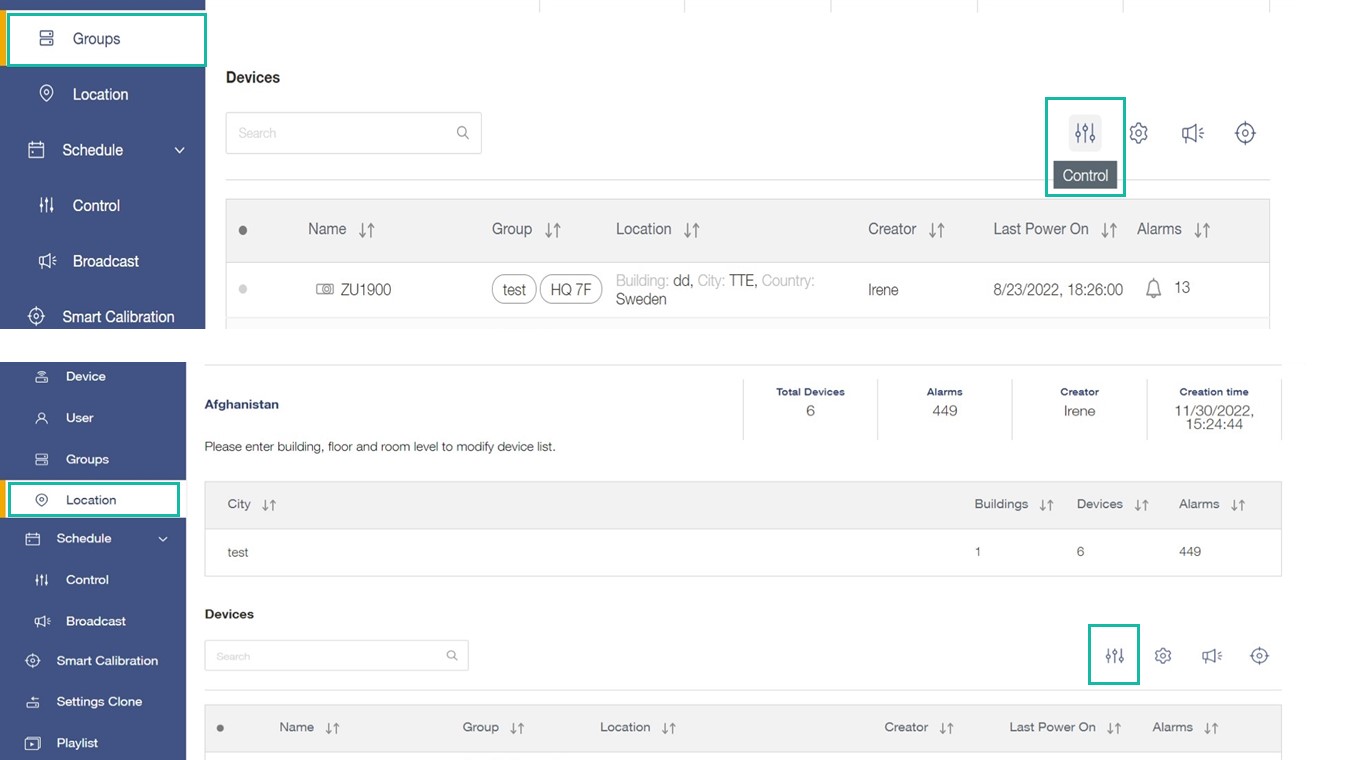
Location & Group command table.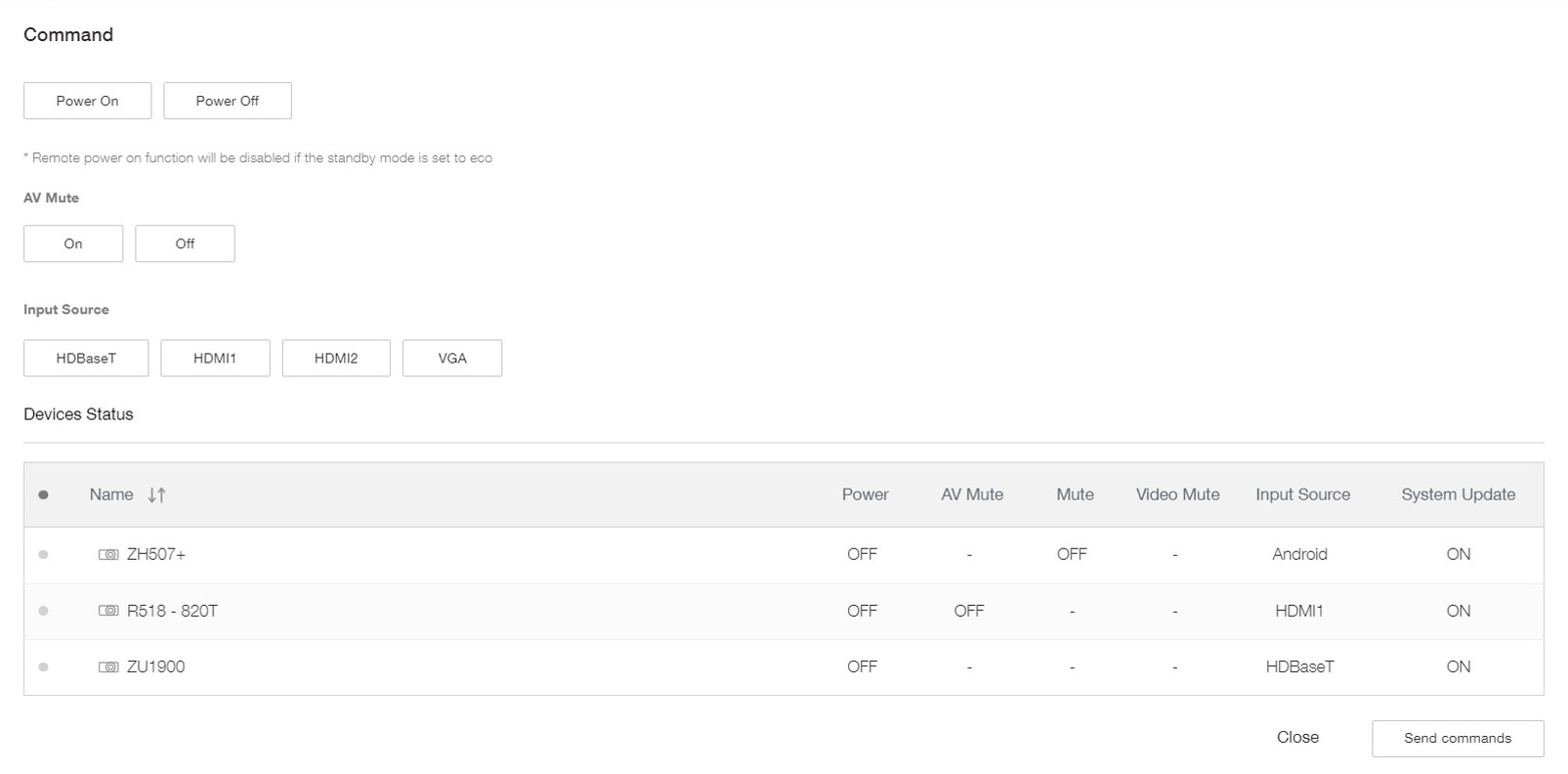
Schedule Control - Automate tedious tasks with scheduling
Set a task to run at a scheduled intervals. Options include input source switching, audio mute, video mute, brightness, aspect ratio, powering on/off and more.
Control on the function menu > click + > select a device/group/location > Control panel
*Control the schedule by device, group or location.(You can access schedule from device, group and location in menu)
A. Select Schedule Type: Once(One-time schedule) or Repeat**.
**Repeat: Monday to Sunday.
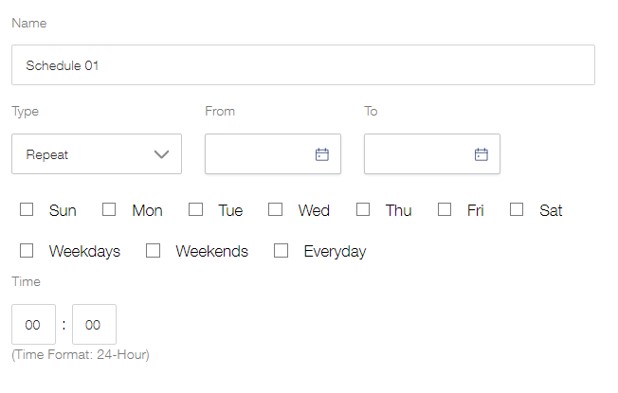
B. Select the date and time for the scheduled task.
C. Select one or more commands.
D. Click Save to save the command task until execution.
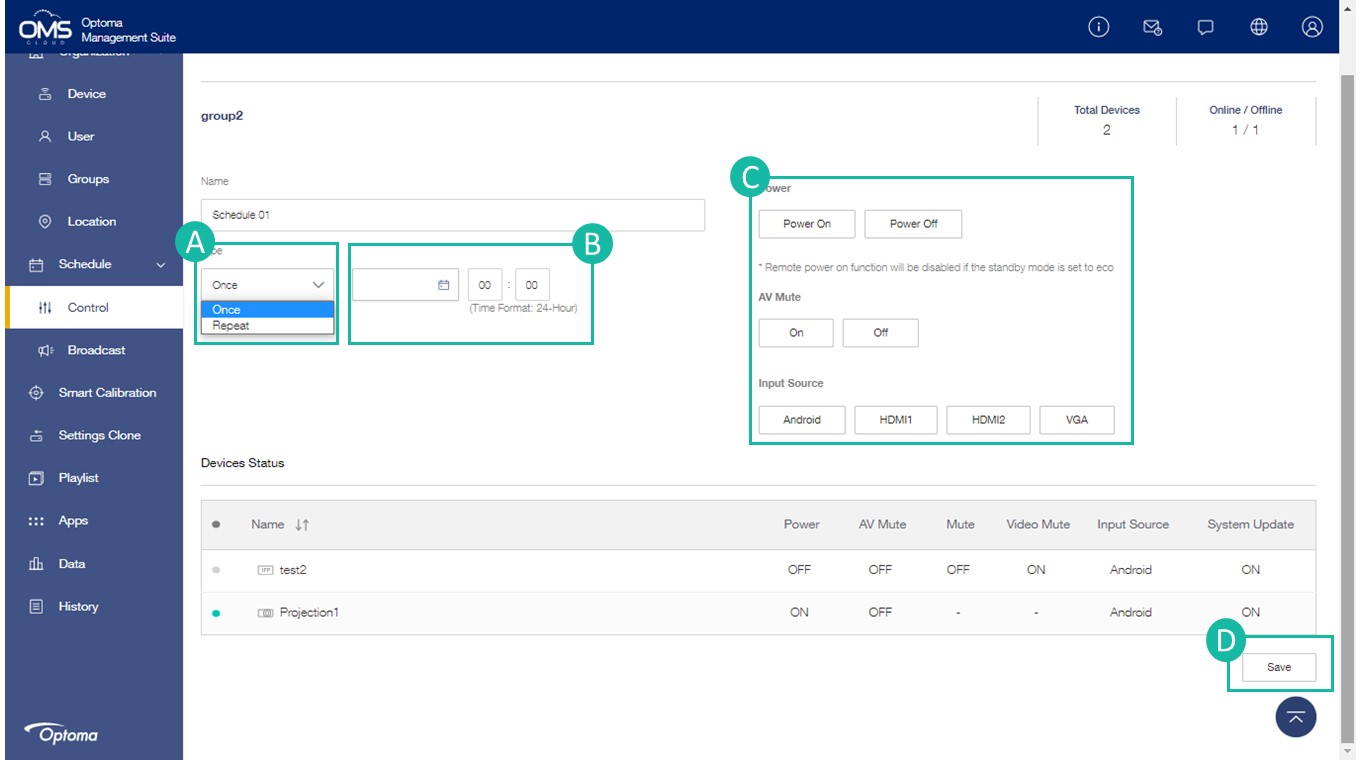
*If power off is included in multiple commands, the power off command is executed last.
*Control panel commands depend on different models.
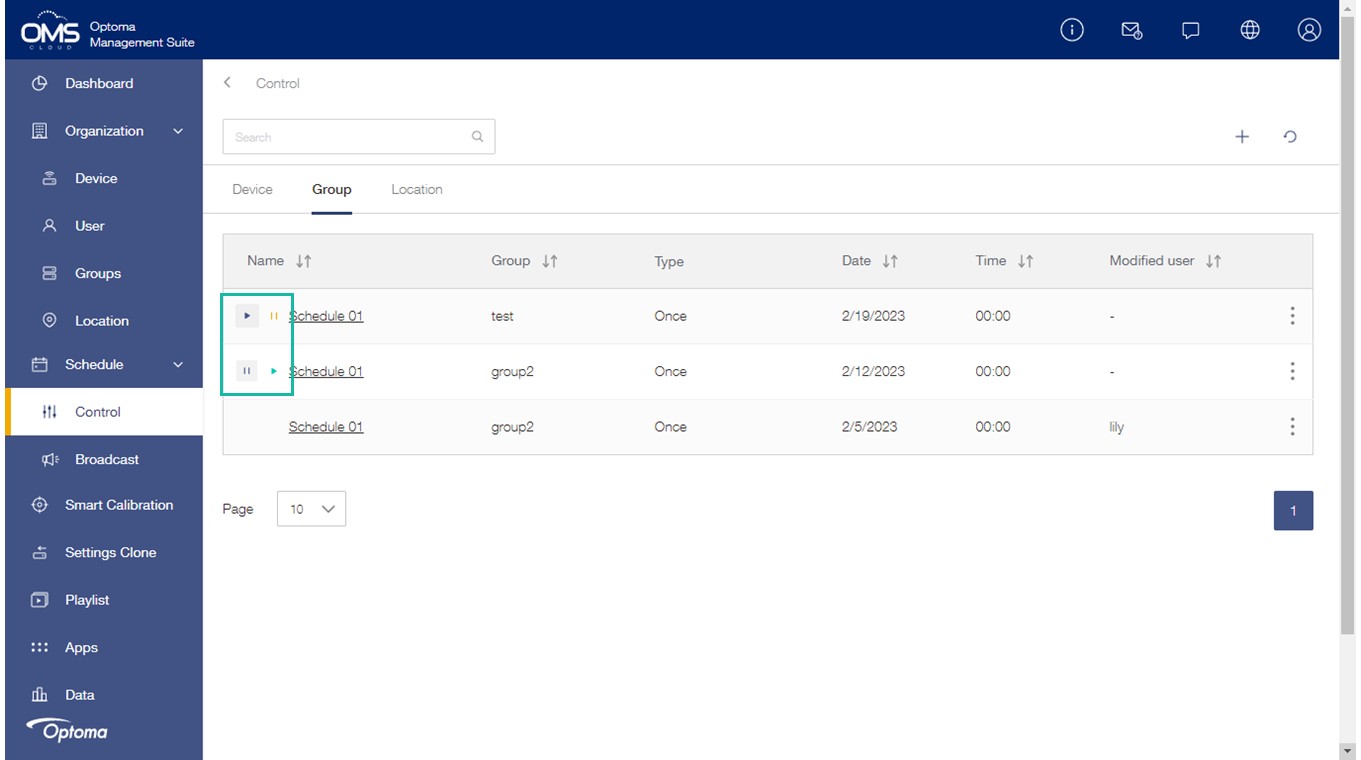
Schedule status:
Click  to activate the schedule.
Click  to stop the schedule.